ATP Release Notes November 2018
Extended Devices
-
ATP Core offers the possibility to monitor the status of devices that don't necessarily have an ATP Platform installed on them (e.g. Tizen Screens, Android devices).
Apart from status monitoring the Extended Device feature also gives the possibility to get periodical extra information from the devices (ex: screenshots).
To be able take advantage of the feature you need to create an "extendeddeviceserviceapp" that will communicate each device. The application will be in charge of sending the statuses and aditional information to the ATP Core which will then send the information to the server so users can see it in the Market.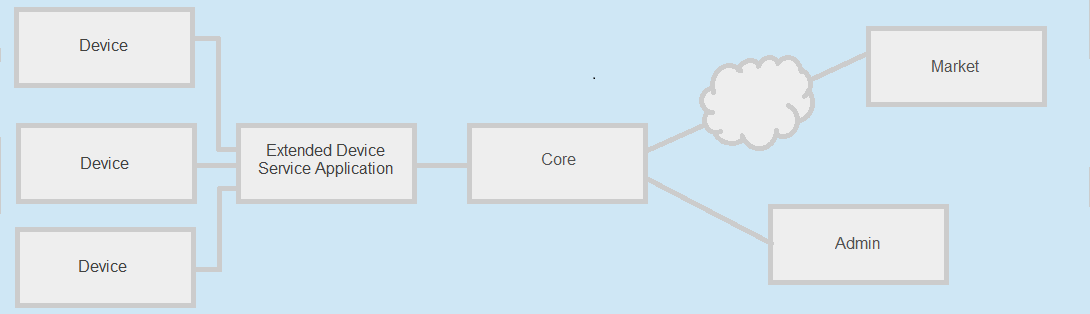
-
When you want to create a extended device application be sure to select correctly the application type in the Developer Platform.
For other information regarding ATP applications development go to the developer page.

After you create the extended device service application you will see in the Bundle Settings Area two types of bundle settings:
- Defaut"
- Extended Device Settings
Settings related to the application and it's own management. You will also see a gray settings which is already added named Has Screenshots.
Depending on the value of this setting the Platform will know if the devices that are managed by the application will provide screenshots or not. For example the applications manages linux based devices that don't provide screenshots it will be set to false but if you monitor Tizen TV's you will set it to true.
Extended Device Bundle Settings
Are settings that are related to each extended device that the application will manage. These settings will be passed to ATP Admin when a extended device is added, this way the ATP Platform will know the settings that are specific for each device. There is a gray setting named Name which is added by default in the settings section. This setting is needed to make the identification of a device easier. You will find more details about the use of these settings in the Device Management section bellow.
For other information regarding ATP service application development go to the developer page. -
After a extended device application is installed it will be visible in the ATP Admin under the Extended Devices section.
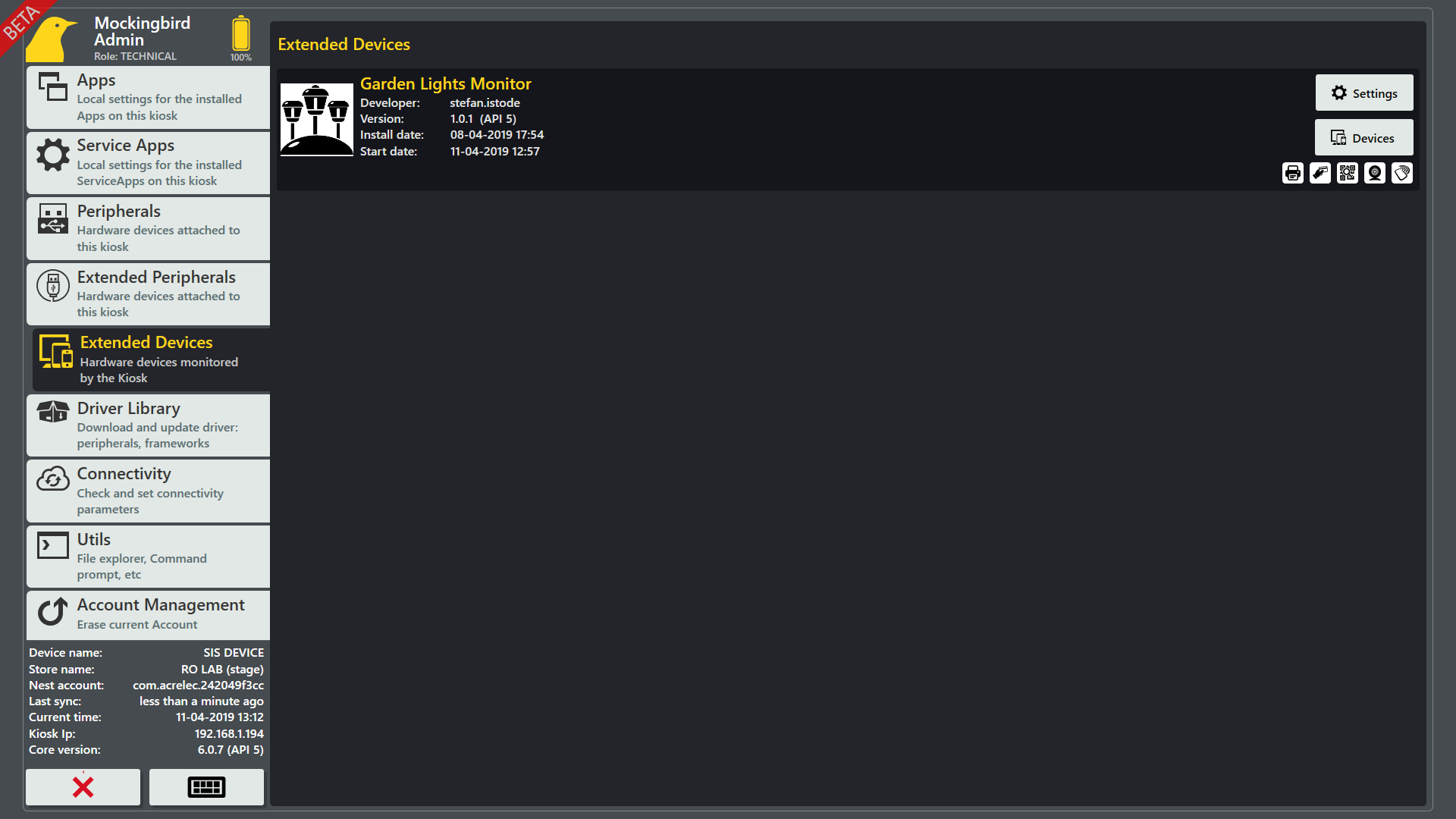
If you click the Settings button you will have access to the application settings defaults and other settings categories that the application has
When clicking on the Devices button you will be redirected to a view were you can Add, Remove, and Edit the devices managed by the application but also see their status.
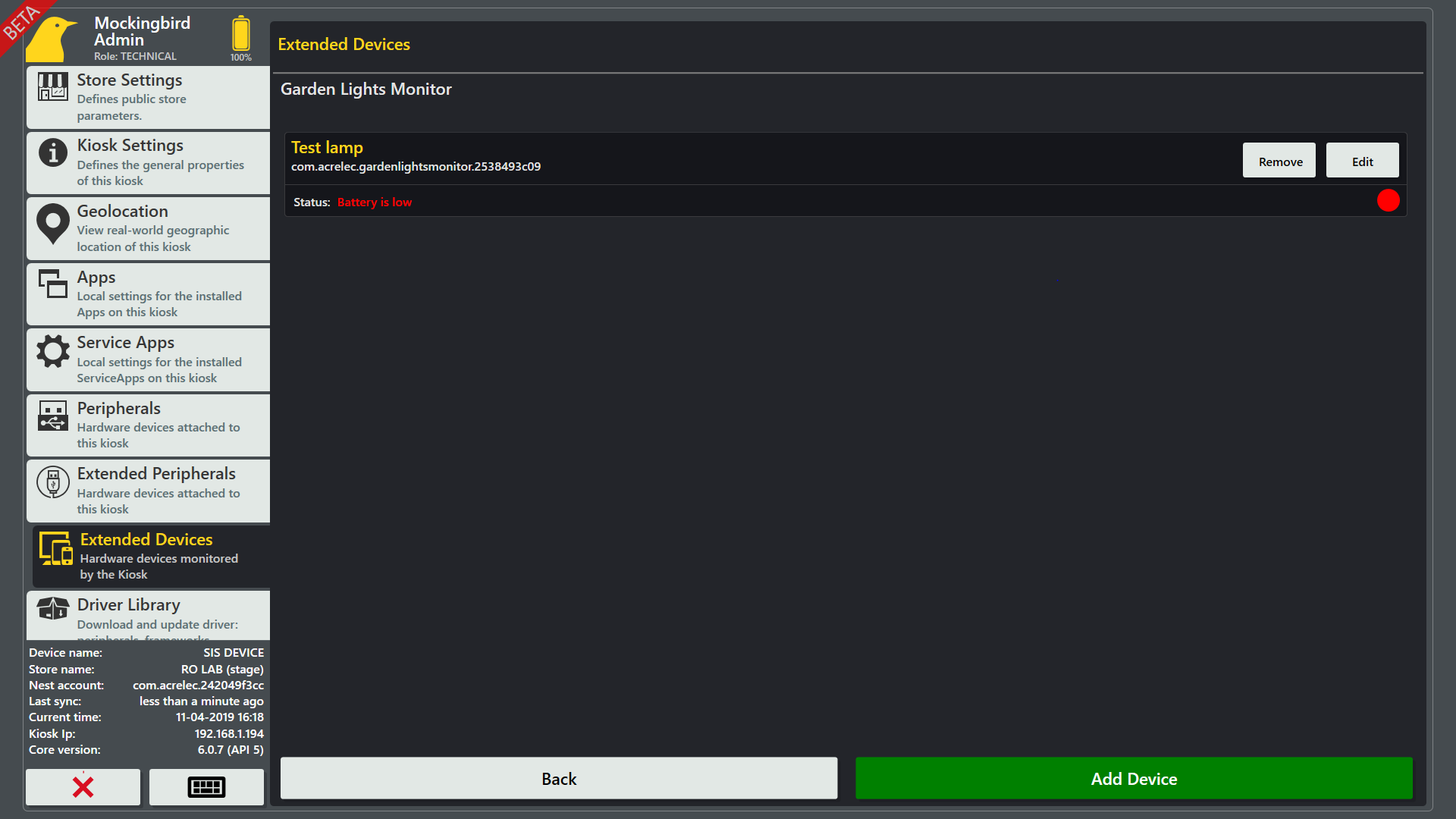
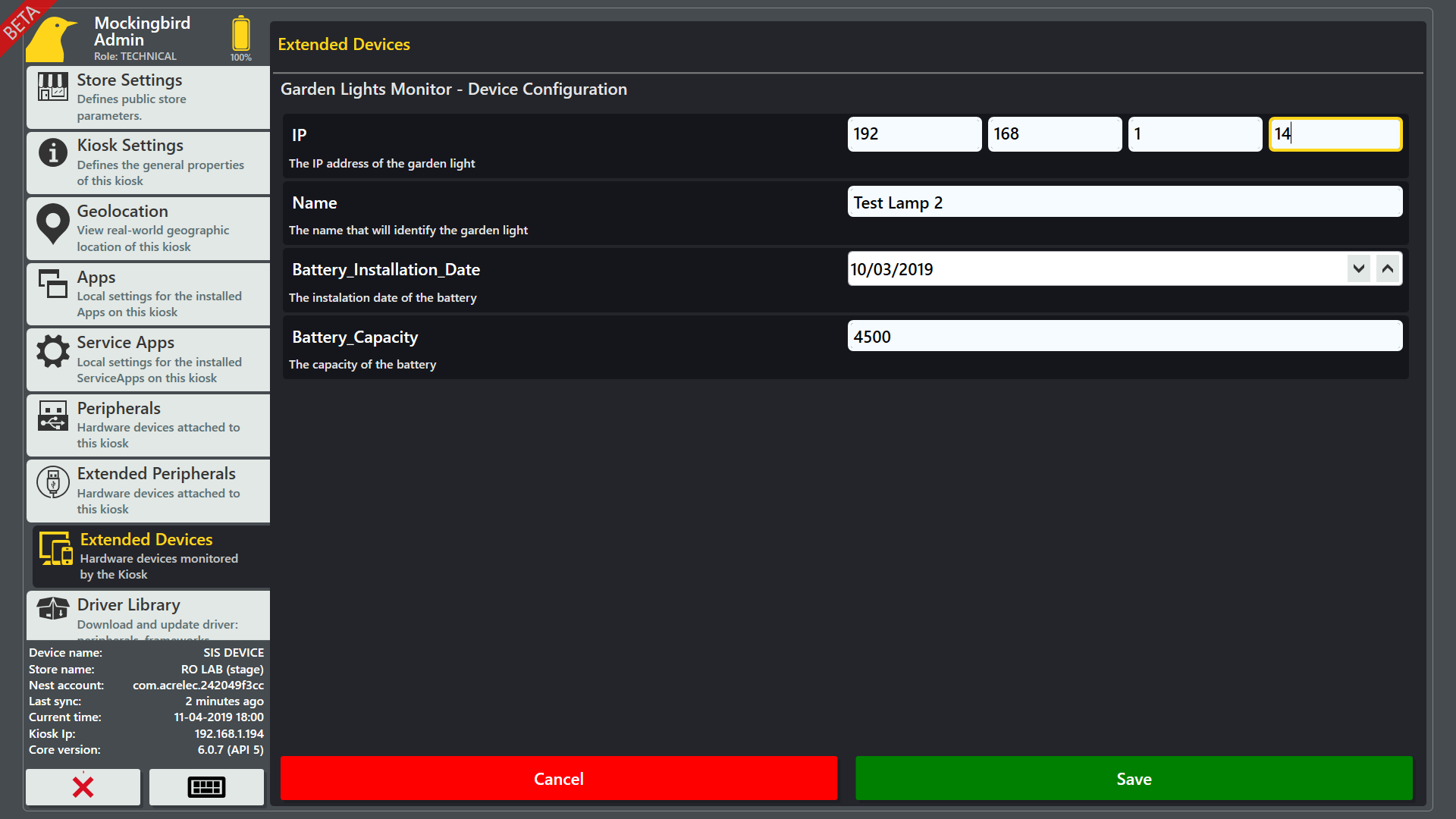
When you edit or add a device you will see a view with all the settings of a the device that you want to edit or add. These settings are the ones that were added in the "Extended Device Bundle Settings" category when the application was created.
-
The extended device service application can report the status of each of the devices that it manages following a specific structure. It can also periodically send extra information about it's devices (example: screenshots, battery usage details, installed applications on a device, etc. )
Status can be send as fast as the applications wants it will be updated right away in ATP Admin and in the Market in 5 minutes. But for the extra information details at 2 minutes must pass between the calls otherwise an error will be sent back to the application. This is done to avoid server overload.
The status of the extended devices can be seen in the ATP Admin when looking at a Extended Device Service Application devices list.
The status of the extended devices managed by an extended device service application can be seen in the Market by looking at a Extended Devices section in a Devices Details View.
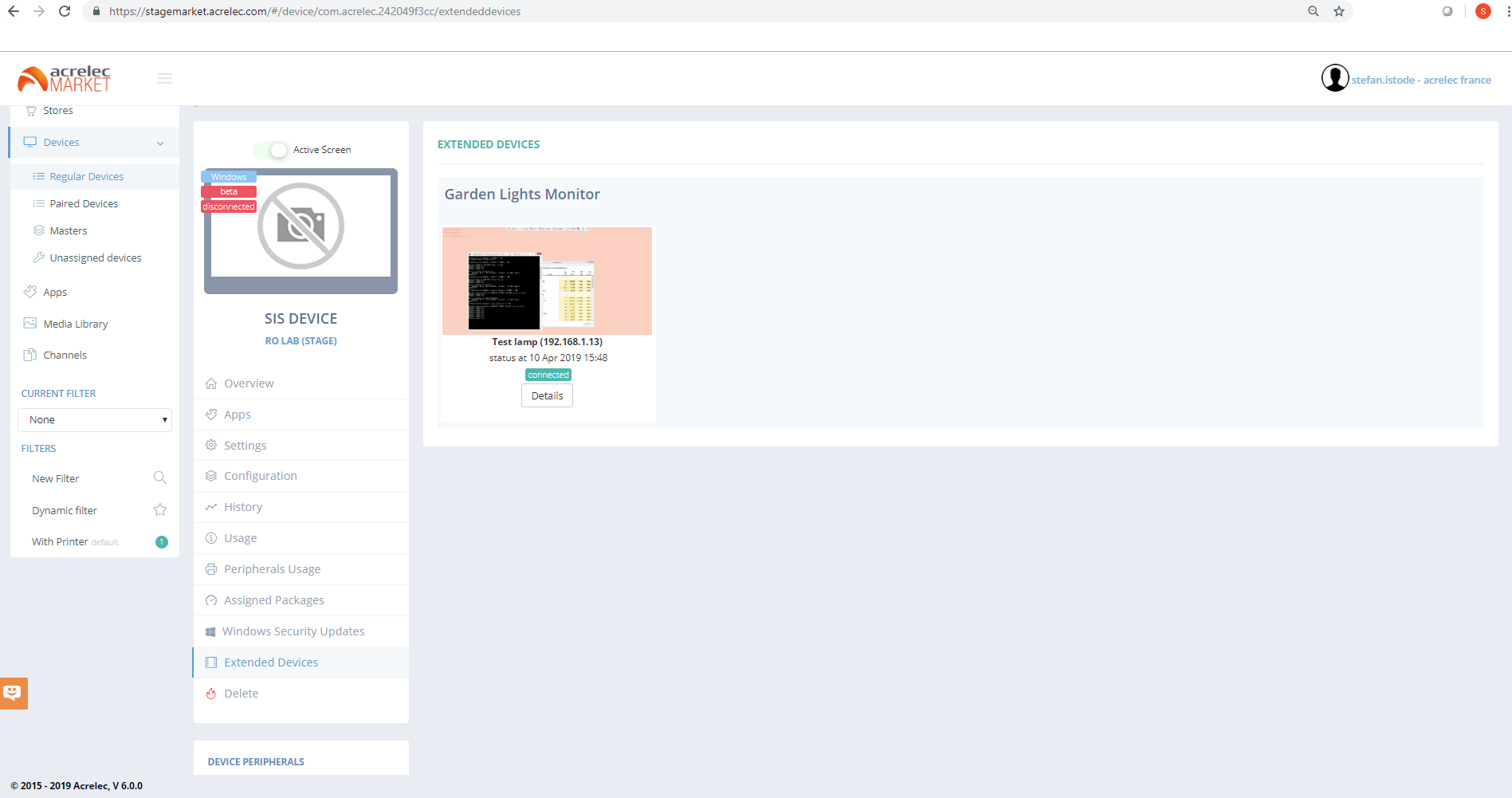
The extra details information can only be viewed in the Market by clicking the extended device Details button under an External Device.